Account access
How to Add or Remove a Google Business Profile Manager
Give your team or marketing agency the access they need while keeping ownership of your business profile.
TLDR
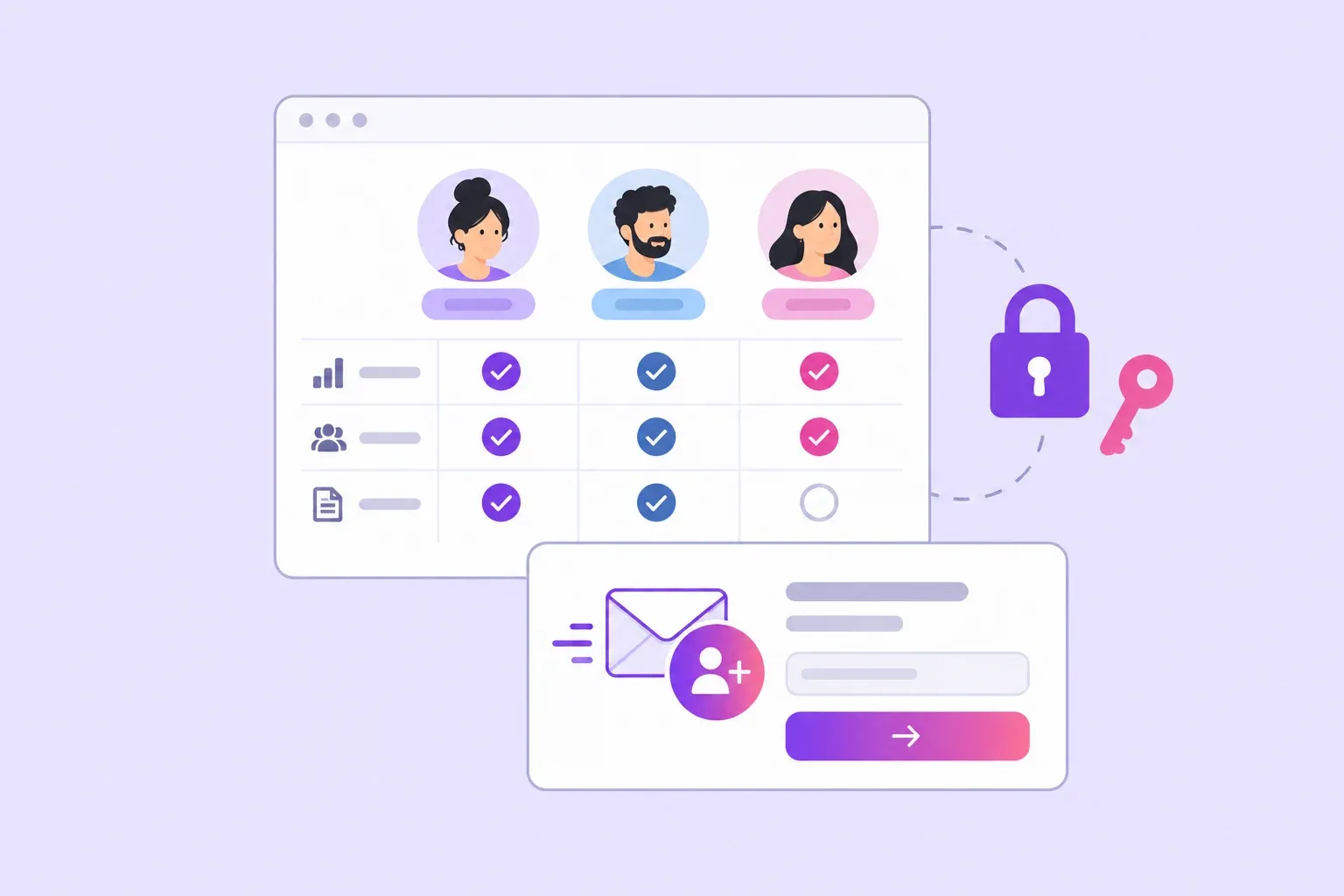
- Keep primary ownership with your business and give each person their own access.
- Use the Manager role for daily updates, photos, posts, and review replies.
- Agree on responsibilities, confirm the invitation is accepted, and remove access when work ends.
You can get help with your business profile without handing over the Google Account you use to run your business. Clear access roles also make it easier to change employees or marketing providers later.
Before you invite anyone, confirm which Google Account owns the listing. If you still need to claim it, follow the setup guide.
Choose the right role
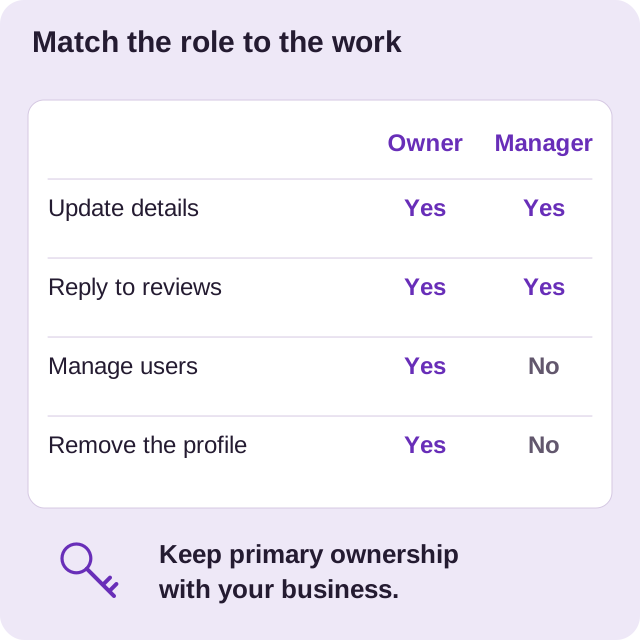
An owner controls access and can remove the profile. A manager can handle daily work, including business information, posts, photos, and review replies, but cannot add or remove users or remove the profile. A profile has one primary owner and can have additional owners.
For a team member handling weekly updates, the Manager role will usually fit the task. Keep the primary ownership with your business. Each person should use their own Google Account, as explained in Google’s access guidance.
Agree on responsibilities before sending the invitation. For example, an office manager might reply to reviews, while the business owner approves changes to the name, hours, and service list. Write those decisions down so that help does not become a source of conflicting edits.
Invite a manager
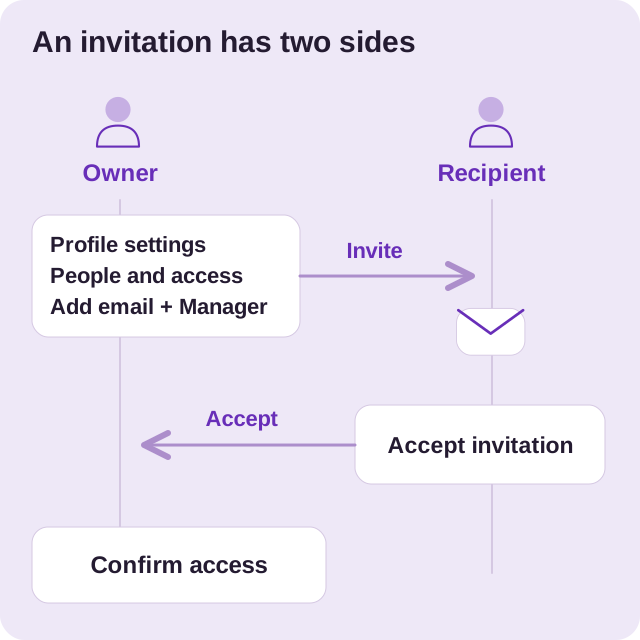
- Open your Business Profile while signed in as an owner.
- Open More, then Business Profile settings, then People and access.
- Choose Add, enter the person’s Google Account email, and select Manager.
- Send the invitation and ask the recipient to accept it.
Return to the access list to check whether the invitation is still pending. If the email address is wrong, cancel the pending invitation and send a corrected one.
Before you invite an agency, confirm the exact email address through a contact method you already use. An unexpected email that asks for ownership is not part of your normal handover process.
Plan a clear handover
Once the invitation is accepted, give your manager a short brief. Our suggested handover contains:
- The services and towns your business currently covers.
- The person who approves changes to important details.
- Where approved photos are stored and who can supply new ones.
- The process for handling a customer complaint.
- How the manager should report completed work.
Link them directly to the review reply examples if that is part of their job. A shared reference can help your team use a consistent tone.
Google limits certain sensitive actions during the first seven days of new access. This does not give managers owner permissions after the waiting period; the assigned role still applies.
Remove access when work ends
An owner can return to People and access, select the departing user, and choose Remove person. Their previous posts and review replies remain on the profile.
Before a planned handover ends, collect the work records your business needs. Ask which profile changes are complete, which questions remain open, and who will handle the next update. Check that the new responsible person can sign in before the old arrangement finishes.
Set a reminder to review the user list whenever someone leaves your team. You can include that check in the same process you use for website and email access.
Connect access to ongoing work
Good access management supports a clear work schedule. Use the local SEO first month plan to decide what needs attention, then assign each task to a named person.
This guide adapts Profile Launch’s manager access resource, with the steps checked against Google’s help page. If you want us to help with ongoing updates, see Google Business Profile management.
Want a hand with your profile?
Tell us about your business and the towns you serve. We can help you decide what to work on next.